Configuring Export: Flow-Cal Transaction Queue Commands
Note: This command is provided as an optional feature, for gas devices. For this command to function, several requirements must be met.
If installed, use the Export: Flow-Cal Transaction Queue command to export raw periodic data records for a defined time range from FMS to a specified Flow-Cal database. Data that is not from a raw data source, e.g. has been imported into FMS via .csv files (categorized as a "User file" source), is not included in the export.
Note: It is strongly recommended that the specified time range for the command include only record spans with fully collected data.
See FMS Commands and Export to Flow-Cal Transaction Queue for more information about using this command via CygNet Explorer (MSS).
See Scheduling FMS Command Tasks in the MSS for more information about scheduling commands.
See FMS ActiveX Controls and CxHmiFms for more information about using commands via FMS ActiveX controls on CygNet Studio or CygNet Vision screens.
See CxFms for more information about scripting commands.
Command Requirements
To enable the command to export raw data to a Flow-Cal database transaction queue, and see the command listed in command management options, the following elements must be present.
- Flow-Cal Database connection — A Flow-Cal database (for example, Oracle) must be installed, with database connectivity available to the FMS. The database connection is defined in the FMS service configuration file (CygNet\Services\FMS\fms.cfg) via Database Info keywords. See FMS Configuration File Keywords for more information about configuring the Database Info Keywords to support the Flow-Cal database connection.
- Flow-Cal Database client — A Flow-Cal database client (for example, Oracle client) must be installed on the computer hosting your FMS (your client computer) and available to the FMS. See Installing CygNet Measurement for more information about installation of the Oracle Database client.
- Flow-Cal Export DLL — CygNet Measurement provides an optional DLL file that must be installed on your system to support data exports from FMS to Flow-Cal. The file (CxFmsFlowCalExport.dll) must be installed and registered in the CygNet\Support folder on the computer hosting your FMS. See Installing CygNet Measurement for more information about installation and registration of the export DLL file.
- Flow-Cal Export CDF — CygNet Measurement provides a command definition file (CDF) that must be installed on your system to define how raw periodic data is exported from FMS to a Flow-Cal database transaction queue. The CDF contains the data item mappings and actions necessary to execute the export command and send data to the corresponding Flow-Cal database version and type, and the file can be customized to define how the data items are handled. The specific CDF file (ExportFlowCalDb.cdf) must be included in the CygNet\Services\FMS\CommandDefs folder on your host server. See Installing CygNet Measurement for more information about installation and registration of the export CDF file. See Editing or Customizing the Command Definition File for more information about using and modifying the CDF file.
Note: Refer to Flow-Cal documentation and/or contact your Flow-Cal representative for the most current information about database connection requirements, and specific Flow-Cal configuration details.
Configuring an Export: Flow-Cal Transaction Queue Command
If desired (optional), first edit or customize item mappings in the command definition file.
Use the following procedure to configure Flow-Cal database transaction queue exports.
To Configure an Export: Flow-Cal Transaction Queue Command
- Open the Command menu in FMS Explorer.
- Click Manage to access the FMS Command Definitions dialog box and then click Add to access the Create New FMS Command Definition dialog box.
|
Create New FMS Command Definition |
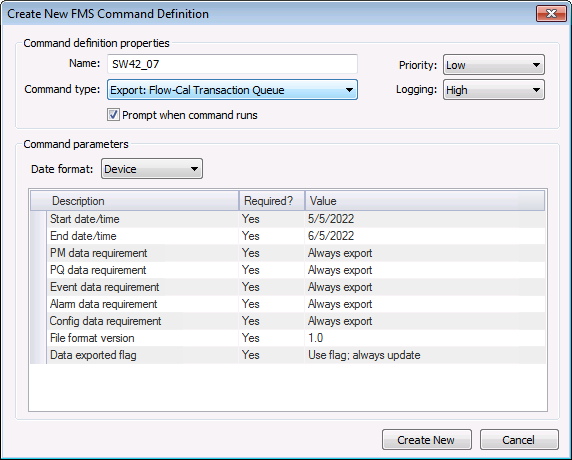
- Define the command definition properties.
- Type a Name for the command into the text box. Maximum character count is 50.
- Select the Command type from the drop-down menu.
- Select a processing Priority from the drop-down menu.
- Select a Logging level from the drop-down menu, to determine the level of logging details reported when viewing command logs. Options include Low, Medium, and High. See Viewing Command Logs for more information.
- Click to select/clear the check box to Prompt when command runs.
- Define the command parameters. The parameters for the Export: Flow-Cal Transaction Queue command are described in the Command parameters box, which includes the Description, a Required indicator, and a configurable Value field. Set the value for each required and each desired optional parameter, as indicated in its Value field.
- Click Create New. The new command will appear in the list of FMS Command Definitions.
Command Definition Properties
The following command definition properties apply to Export: Flow-Cal Transaction Queue commands.
| Property | Description |
|---|---|
|
Name |
Type in a Name for the new command. |
|
Command type |
Select the desired Command type from the drop-down menu. See FMS Commands for more information about available command types. |
|
Priority |
Select a processing queue Priority for the command from the drop-down menu. Options from least to greatest priority are as follows.
Default value is Low level processing queue priority. |
|
Logging |
Select a Logging level for the command results from the drop-down menu. Options are as follows.
Default value is Low level logging when scheduling a command in the MSS. Default value is High level logging when creating or running an ad-hoc command in FMS Explorer. |
|
Prompt when command runs |
Click to select/clear the check box to Prompt when command runs. Selecting this option means you will receive a prompt asking if you want to modify the parameters before the command is executed. |

Command Parameters
The following command parameters apply to Export: Flow-Cal Transaction Queue commands when creating or editing commands via FMS Explorer.
| Description | Value |
|---|---|
|
Date format |
Select the desired date format from the drop-down menu. Options are as follows.
Default value is Device time. |
|
Start date/time |
Select the beginning date and time of the range for which to export device records. Click ... to access the Select Date and Time dialog box. Note: It is strongly recommended that the specified time range for the command include only record spans with fully collected data. See Selecting Date and Time for more information. See Note below this table. This parameter is required. |
|
End date/time |
Select the ending date and time of the range for which to export device records. Click ... to access the Select Date and Time dialog box. Note: It is strongly recommended that the specified time range for the command include only record spans with fully collected data. See Selecting Date and Time for more information. See Note below this table. This parameter is required. |
|
PM data requirement |
For periodic data, select whether to export periodic metering data, from the options in the drop-down menu. Options are as follows.
This parameter is required. |
|
PQ data requirement |
For periodic data, select whether to export periodic quality data, from the options in the drop-down menu. Options are as follows.
This parameter is required. |
|
Event data requirement |
For periodic data, select whether to export event data, from the options in the drop-down menu. Options are as follows.
This parameter is required. |
|
Alarm data requirement |
For periodic data, select whether to export alarm data, from the options in the drop-down menu. Options are as follows.
This parameter is required. |
|
Config data requirement |
For periodic data, select whether to export configuration data, from the options in the drop-down menu. Options are as follows.
Note: Be careful to require Configuration data only if the Node supports history data types that utilize configuration data. This parameter is required. |
|
File format version |
Select the version of the Flow-Cal database used for the export, from the options in the drop-down menu. Options are as follows.
Note: Alternatively, Flow-Cal version can be configured in the .cdf (command definition file) if desired. This parameter is required. |
|
Data exported flag |
Select whether to flag device records as "exported" in the database, from the options in the drop-down menu. Note: When a "Use flag" option is selected, the Data Exported flag is applied to the entire record, regardless of how many data type(s) are selected for export. Options are as follows.
*Note: When this option is selected, the Data Exported flag is set only for records that contain data, and for which data collection (all supported types) is complete. When exporting partial records (e.g. you are only exporting PM data at this time), it is recommended to use the "Ignore flag" option, preserving the option to flag the record at a later time, when the remaining record data types are exported. This parameter is required. |
Note: When using relative (rather than absolute) date/time, if both the start and end date/time have hour, minute, and second values of 00, or if both are set to midnight, an additional day will be added to the date at the end of the range. This occurs because the service assumes the start of the day for the starting date/time and the end of the day for the ending date/time in these circumstances. Therefore requesting a time range from T to T will yield one day of data, and from T-1 to T will yield two days of data. If only one day of data is desired when using relative date/time, the start and end date/times must therefore be the same. If any of the start or end date/time hour, minute, or second values are specified as a value other than zero (or midnight) however, the range will be used as specified.
*Note: If this option is selected and no associated history data is available (Collection Details value does not equal [blank]), the command will fail. See Collection Details in the CygNet Measurement Concepts topic for more information.
Editing or Deleting an Export: Flow-Cal Transaction Queue Command
See Managing Node Commands for information about editing or deleting this command.
Running an Export: Flow-Cal Transaction Queue Command
See Running Node Commands for information about running this command.
Editing or Customizing the Command Definition File
If you want to change specific data item mappings, use the following procedure to edit or customize the command definition file (CDF), before executing the Flow-Cal transaction queue data export command.
Note: When you override a CDF mapping, you generally want to ensure that each newly mapped item is mapped to a field that uses the same unit set as the new item. If you decide to map an item requiring units to a unitless field in the file however, the mapping will still be valid - but the value reported from the device will appear exactly as read, and will not be associated with a unit set. Values are not converted in the file when they are sent to a unitless field.
- On your host server, in the CygNet\Services\FMS\CommandDefs folder, find the ExportFlowCalDB.cdf (command definition) file. Verify that the word "Sample" has been removed from the file name (this was likely already done at installation of the CDF) so that the file will be recognized by the FMS service, and then open the file.
- Locate the FlowCalDatabase section of the file corresponding to the correct Flow-Cal database version for the export, e.g. 1.0.
-
Optionally add, verify or edit the TimeOrientation value to align timestamps as desired. Options are Leading (all records oriented to the beginning of the record span), Trailing (all records oriented to the end of the record span), or Native (records oriented as configured at the device). Default behavior is Native time orientation, and PM when both PM and PQ data is present.
Note: The Leading or Trailing time orientation override is unable to adjust to handle Daylight Saving Time (DST) changes that originate from the device.
If used, include the TimeOrientation element in the CDF as in the following example.
<ExportFlowCalDatabase>
<FlowCalDatabase DisplayIdentifier="1.0" Version ="1.0" TimeOrientation="Leading">
<Common>
. . .
- Verify or edit the Node identifier for the export. In the <Common> <SOURCE_ID> section, optionally edit the Node identifier using a value of either NodeName or NodeDesc. If any other value is used, the command will fail. If no value is used (it is left blank), NodeName will be used by default.
- Edit mappings as desired. In the <FC_TRANSACTION_QUEUE> and <FC_TRANSACTION_SNAPSHOT> sections, edit specific data item mappings, tokens, and/or values as desired, within each section of the file. See EFM Data Items (FMS Alarm Items, FMS Configuration Items, FMS Event Items, and FMS History Items) in the Devices section for more information about specific FMS data items pertaining to each section.
- In the <FC_TRANSACTION_QUEUE> <Events> section, some event data items are associated with configuration item values, and do not have equivalent Flow-Cal configuration item mappings. These items can be mapped to unused custom Flow-Cal fields USER_FIELD_S11 through USER_FIELD_S30, as described in step 6.
- In the <FC_TRANSACTION_QUEUE> <PeriodicHistory> <GQSource> section, listed mappings and values apply only to Chromatograph Nodes.
- Sometimes multiple items map to the same field, that accommodates only one item mapping. In this case the first value found in the CDF file with a corresponding valid value will be used. For example, when mapping K_Factor values to the field provided, the value returned (e.g. eFMS_CFG_GAS_K_FACTOR_MASS, eFMS_CFG_LIQUID_K_FACTOR_VOLUME, etc.) maps to the same field, so the first mapped value will be used.
- Edit custom data item mappings as desired. Custom FMS data items and/or tokens can be mapped to the following Flow-Cal fields.
- In the <FC_TRANSACTION_QUEUE> <PeriodicHistory> section, custom FMS items can be mapped to the following Flow-Cal fields.
- Flow-Cal fields USER_FIELD_V0 through USER_FIELD_V7 can have mappings of any valid FMS gas PV item that resolves to a numeric value.
- Flow-Cal fields USER_FIELD_V0 through USER_FIELD_V4 have default mappings of FMS History items eFMS_PV_PM_CUSTOM1 through eFMS_PV_PM_CUSTOM5.
- Flow-Cal fields USER_FIELD_S8 through USER_FIELD_S9 can have mappings of any valid FMS gas PV item that resolves to a string value. Alternatively, they can have mappings of any valid FMS token containing facility information (RemoteDeviceType, PollingFac_Attr0 through PollingFac_Attr39, PollingFac_Table0 through PollingFac_Table59, or PollingFac_YesNo0 through PollingFac_YesNo19).
- In the <FC_TRANSACTION_SNAPSHOT> section, custom FMS items can be mapped to the following Flow-Cal fields.
- Flow-Cal fields CFG_USER_FIELD_S01 through CFG_USER_FIELD_S30 can have mappings of any valid FMS Configuration data item that resolves to a string value. Alternatively, they can have mappings of any valid FMS token containing facility information (RemoteDeviceType, PollingFac_Attr0 through PollingFac_Attr39, PollingFac_Table0 through PollingFac_Table59, or PollingFac_YesNo0 through PollingFac_YesNo19).
- Flow-Cal fields CFG_USER_FIELD_S01 through CFG_USER_FIELD_S10 have default mappings of FMS Configuration data items eFMS_CFG_CUSTOM1 through eFMS_CFG_CUSTOM10.
- Save and close the edited ExportFlowCalDB.cdf file.
Note: Problems that arise while processing a command definition file are logged to the Services > FMS log file.

